TL;DR
Remove the background from your sketch, then run Concept to Vector.
Pick a style such as geometric or line art, and set how closely it follows your sketch.
Each generation takes around 30 seconds and is not 100% accurate.
The results often have too many anchor points, so expect cleanup.
For clean logo work, the pen tool still gives you a better result.
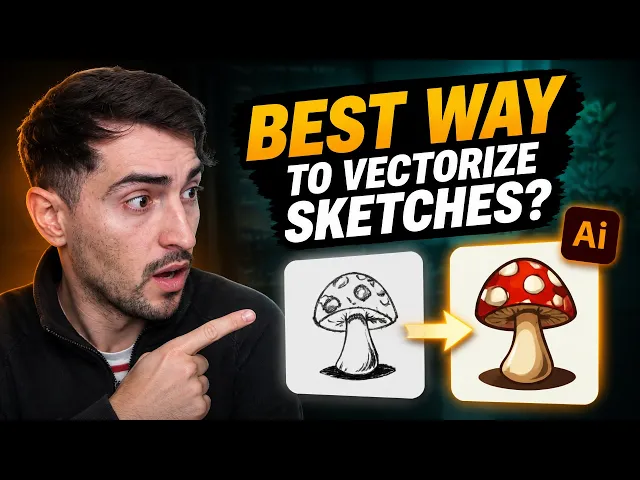
You can vectorize a sketch in Illustrator by removing the background, then running Concept to Vector on it. Illustrator generates a vector version in about 30 seconds. It gets close, but it is not 100% accurate.
Turning a hand sketch into clean vectors is one of the slowest parts of logo and illustration work. Most of us still do it by hand with the pen tool. So the question is simple. Is the new AI option good enough to replace that?
I tested it on a quick pen sketch of a bird, a crayon drawing and a few other shapes. Here is how it works and where it falls short.
How to vectorize a sketch step by step
Start with a photo or scan of your sketch. A quick pen sketch is fine. You could also use a pencil or coloured pens.
Place your sketch on the artboard.
Select it and click Remove Background.
Duplicate it, so you keep the original to compare against.
Open Concept to Vector.
Choose a style, such as geometric or line art.
Set how closely it should match your reference, from exact to a bit looser.
Leave raster output off if you want a vector result.
Choose a model. Illustrator shows you the credit cost.
Click Generate.
Once it finishes, scale the result over your sketch to compare. On my bird, it did a pretty good job considering how rough the sketch was.
How accurate the result really is
It was close, but not exact. The beak came out a bit longer than I drew it. A corner that was sharp in my sketch became a soft bend.
The bigger issue is the paths. The top of the shape was fine. The bottom had far too many anchor points.
If I had used the pen tool, the shape would have been clean from the start. A few well placed points would have done the same job. So you need to budget time for cleanup.
AI sketch to vector | Pen tool | |
|---|---|---|
Speed per try | About 30 seconds to generate | Depends on your skill |
Accuracy | Close, not 100% | Exactly what you draw |
Anchor points | Often too many | Minimal |
Best for | Quick concepts and style tests | Final logo and icon work |
Try different styles on the same sketch
The useful part is how easy it is to try another style. Illustrator marks the result as a generative object in the top left corner, with a small symbol. You can go back to the settings and generate again.
When I switched my bird to line art, it looked a bit goofy. The lines were bent and messy. But the properties panel kept both versions, so I could switch back and forth.
A few other tests:
Crayon sketch. It added highlights and shadows I did not ask for.
Three colour style. It limited the art to three colours, including a dark red and a light red.
Line art with Reflect. It mirrored the shape into a butterfly style, which works for simple shapes.
So it is good for exploring. It is not yet a replacement for drawing the final mark yourself.
Edit generated vectors with a prompt
The update also lets you edit generated graphics with a prompt. This works on anything you made with Text to Vector Graphic or Turntable.
Select the generated artwork.
Click Prompt to Edit in the contextual taskbar.
Pick a preset or type your own prompt.
Choose a model and click Generate.
I tested it on a raven on a branch holding a coin. I asked for a gold coin and green leaves. It made the leaves green, but it also changed the design and made the branch brown, which I never asked for.
Next I asked it to colour the bird feathers. That came out nice, with blues and greens. But zoom in and you can see odd shapes and artifacts in a few places.
If you want it to keep the design, say so in the prompt. Something like "keep all details the same" will help.
When you are happy, ungroup the artwork. It turns into a normal compound path and leaves generative mode, so you can edit the vectors like any other shape. This is in the current Illustrator app, so you do not need the beta.
Other updates worth knowing
The same update added a few smaller tools that save time.
Rewrite works on text boxes. Click a text box and choose Rewrite in the contextual taskbar. Type a prompt, such as "make it friendly and write about space", and it replaces placeholder text with real copy. You also get these quick actions:
Translate, with three translation options to choose from.
Proofread, which checks spelling, grammar and punctuation.
Fit text, which helps when you lay out longer documents.
The application bar at the top right now lets you change the window layout when you have several files open. You can also switch between workspace presets there, and see how many credits you have left.
The Align panel also got cleaner. It now reads the context of what you select:
Select one object and it aligns to the artboard.
Select two or more and it aligns them to each other.
Click one object again to make it the key object. It gets a thicker blue outline.
Use distribute spacing to even out the gaps, horizontally or vertically.
Before, you had to find these options in the bar at the top. Most people never used them. Now they sit inside the Align panel.
When to use AI or the pen tool
Use the AI tools when speed matters more than precision. They are good for quick concepts, mood boards and testing a style before you commit.
Draw it yourself when the shape is the product. A logo or icon needs clean curves and few anchor points. That still comes from knowing the pen tool well. If you want to build that skill properly, it is a big part of what I teach in Designer School.
The bottom line
Illustrator can now turn a sketch into vectors, and it gets surprisingly close. It still takes around 30 seconds, misses details and leaves messy paths. Use it to explore ideas fast, then use the pen tool for the final mark.
Questions, answered
Can Illustrator turn a sketch into a vector?
Yes. The May 2026 update of Illustrator can turn a raster sketch into vectors with AI. You remove the background from the sketch, then use Concept to Vector to generate the shape. It works on pen, pencil and even crayon sketches.
Is AI sketch to vector in Illustrator accurate?
It gets close, but it is not 100% accurate. In my tests it changed sharp corners into soft bends and stretched some details. It also added a lot of extra anchor points, so you still need to clean the paths up.
Is the pen tool better than AI for vectorizing a sketch?
For clean, final artwork, I still think the pen tool is better. You get minimal anchor points from the start. The AI option is useful for quick concepts and for trying different styles fast.
How do I edit an AI generated vector in Illustrator?
Double click into the generated object to change colours, or use Prompt to Edit to change it with a prompt. When you want normal vectors, ungroup it. It becomes a regular compound path and leaves generative mode.
Do the new AI features need Illustrator beta?
No. Prompt to Edit for generated graphics is in the current Illustrator app. You do not need to install the beta to use it.

Written by Jeremy Mura
Brand designer, founder of Mura Studio and Designer School