TL;DR
I built the same logo in Illustrator, Affinity and VectorCraft to test them on real work.
Illustrator won with a 9 out of 10 because its tools are smoother and there are more of them.
VectorCraft scored a 7. It works like Illustrator, but pattern editing was buggy.
Affinity scored 6.5 to 7. I missed a shape builder and its corners all rounded at once.
The engraved line pattern is the real test, and it is where free apps struggle.
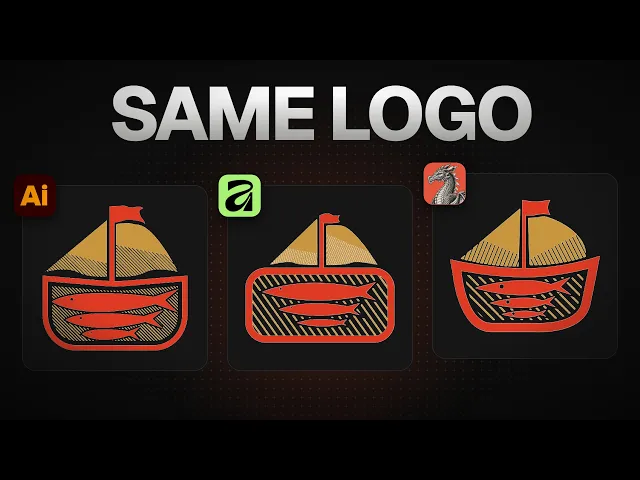
Illustrator is still the best app for logo design. In my test it scored a 9 out of 10. VectorCraft came close with a 7, and Affinity landed at 6.5 to 7.
Affinity and VectorCraft are both free. So the real question is simple. Can a free app keep up with real logo work, or do you still need to pay for Illustrator?
To find out, I built the same logo in all three apps. One of the free ones almost won.
The logo I used for the test
The logo is for a made up company called Little Fleet Sardine Co. They fish sardines and pack them.
The icon mark is a boat with three sardines in it. It has bold type, a stamp version and a type version.
The hard part is the engraved line pattern inside the boat. That kind of engraving effect is usually where free design apps fall apart.
Each rebuild needed the same core tools:
The pen tool, to draw the thin sardine shapes.
The ellipse tool and shape builder, to cut the eye out of each fish.
The blend tool, to make the line pattern.
Patterns, to fill the boat with those lines.
Offset path, to add space around the shapes.
How I built it in Illustrator
Illustrator handled every step without a fight. Here is how I made the sardines.
Press P for the pen tool and draw a thin sardine shape.
Draw a circle for the eye with the ellipse tool.
Use the eyedropper to make the circle white.
Use the shape builder to minus the circle out. Now you have one clean shape.
Hold Alt and Shift to duplicate the fish, then scale it down.
The line pattern came next. This is where Illustrator really shines.
Draw a stroke with the pen tool and color it gold.
Duplicate the stroke.
Select both, then go to Object, Blend, Make.
Open the blend options and change Smooth to Steps or Distance. I used a distance of 3.5.
Go to Pattern, Make to save it as a pattern.
For the boat, I drew a box and rounded off the bottom. I used Reflect to mirror a copy, then united the two halves. I selected the top anchor point and rounded it off too.
I gave the boat a red stroke at 10 pixels. Then I duplicated it, offset it and applied the pattern. I sent the pattern behind with Ctrl, Shift and the left square bracket.
I rotated the lines to about 40 degrees and expanded them. Then I offset the sardines by 2.5 pixels and made that offset white. That keeps the pattern from running right up against the fish.
For the other copies, I double clicked into the pattern and changed its color to white. Editing a pattern is that easy.
How Affinity handled the rebuild
In Affinity, you first need to make sure you select Vector. After that, the pen tool works much like Illustrator. Press P and click to draw the sardine.
The direct selection tool also feels familiar. You can drag the anchor points and have full control over them. It did feel a little janky for me, though that might have been my computer.
The eyedropper is I, just like Illustrator. The forward slash key turns off a stroke. Holding Shift and Alt keeps your proportions as you scale.
Cutting the eye out was slower. I did not find a shape builder. Instead, I dragged the circle inside the sardine layer to make a clipping mask. It works, but it is not as fast.
The boat was harder. When I picked rounded corners, Affinity rounded all of them at once. I only wanted to round one.
Then I went looking for the blend tool and could not find it. I duplicated the lines with Ctrl and J, grouped them and rotated them. When I dragged the pattern into the group, one line randomly jumped to another stroke.
The type step was fine. I set the name in Anton and made it gold.
How VectorCraft handled the rebuild
VectorCraft uses the same tools and the same shortcuts as Illustrator. I could jump straight in.
The pen tool had one quirk. It added curves on its own when I did not ask for them. The eyedropper, ellipse tool and shape builder all worked. I cut the eye out of the sardine with no trouble.
The blend tool worked too. I went to Object, Blend, Make and set it to 8 points. Offset path also worked, as long as you turn on Preview so you can see what you are doing. There is even an outline tool, same as Illustrator.
So far, everything worked as intended. Then I hit the pattern.
In Illustrator, you double click a pattern to edit its strokes. VectorCraft would not let me do that. It is a bug, and right now it is super buggy at this step. I had to leave that part out.
For the type, I typed Little Fleet and picked the same font. At first I thought it was not finding the font, but it did.
How the three apps compare
Here is how each app did on the steps that mattered.
Step | Illustrator | Affinity | VectorCraft |
|---|---|---|---|
Pen tool | Smooth | Works, felt janky | Adds curves on its own |
Cutting shapes | Shape builder | Clipping mask, slower | Shape builder |
Rounding one corner | Works | Rounds all corners | Not tested |
Blend tool | Works | Could not find it | Works |
Editing patterns | Double click to edit | A line jumped to another stroke | Bug, could not edit |
My score | 9 out of 10 | 6.5 to 7 out of 10 | 7 out of 10 |
My verdict on each app
Illustrator gets a 9 out of 10. Its tools just work better and smoother. There are more of them, and I know them well. The blend tool, patterns, swatches and path editing all came easily.
Affinity gets a 6.5 to a 7. I liked it, but I am not as familiar with its tools. Some of the shortcut keys are different. The rounded corners setting was annoying, and I could not find a shape builder. That makes it harder to build shapes.
VectorCraft gets a 7. It was a bit buggy overall. But it works exactly like Illustrator, and that counts for a lot if you already know Illustrator.
If you want to see a full logo built from start to finish, the method matters more than the app. I teach the whole brand identity workflow in Designer School.
The bottom line
For logo work with detailed patterns, Illustrator is still the one to beat. VectorCraft is the closest free option because it works the same way, but its pattern editing is buggy right now. Affinity can do the job, but expect to learn new shortcuts and work around missing tools.
Questions, answered
Is Illustrator better than Affinity for logo design?
In my test, yes. I gave Illustrator a 9 out of 10 and Affinity a 6.5 to 7. Illustrator's blend tool, patterns and shape builder made the logo faster to build. In Affinity I could not find a shape builder and had to use a clipping mask instead.
What is VectorCraft?
VectorCraft is a free vector design app that works a lot like Illustrator. It uses the same tools and shortcuts, including the pen tool, shape builder, blend tool and offset path. In my test it scored a 7 out of 10.
Is there a free alternative to Adobe Illustrator for logos?
Affinity and VectorCraft are both free, and both can build a logo. VectorCraft feels closest to Illustrator because the tools and shortcuts match. Both struggled with the engraved line pattern in my test.
Does VectorCraft have a blend tool?
Yes. Go to Object, Blend, Make, the same as Illustrator. I set it to 8 points and it worked well. Editing a pattern by double clicking it did not work in my test, which looked like a bug.
How do I make a line pattern in Illustrator?
Draw a stroke with the pen tool and duplicate it. Select both, then go to Object, Blend, Make and set the blend to Steps or Distance. Then go to Pattern, Make to save it as a pattern you can apply to any shape.

Written by Jeremy Mura
Brand designer, founder of Mura Studio and Designer School